
 Photoshop
 Maya
Maya ZBrush
 Houdini
 Substance Painter
 Blender
 Unreal Engine
 Arnold
 Nuke
Nuke KeyShot
 V-Ray
V-Ray Marmoset Toolbag
 Mari
Mari Marvelous Designer
 Substance Designer
 3ds Max
 3DCoat
 Redshift
 Faceform Wrap
 Lightroom
 After Effects
 OctaneRender
 SpeedTree
 Daz 3D
 Agisoft Metashape
 Fusion
 Modo
Modo RealityCapture
 Gaea
Gaea Cinema 4D
 Gravity Sketch
 Premiere
 Procreate
 Clip Studio Paint
 SketchUp
 SketchBook
 Katana
 Natron
 Mudbox
 Quixel Bridge
 Quixel Megascans
 Quixel Mixer
 Substance 3D Modeler
 World Creator
 Yeti
Yeti Ziva VFX
 Mixamo
 Adobe Medium
 Quixel DDO
 xNormal
 Meshmixer
 Storyboard Pro
 DaVinci Resolve
 TreeIt
 World Machine
 Gaffer
 Corel Painter
 SynthEyes
 Krita
Krita Massive
 Materialize
 Unity
Unity Ornatrix
 PreForm
 Moi 3D
 animBot
 QuickTime
 ReCap
ReCap
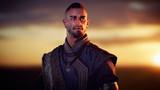
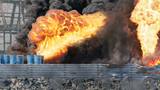
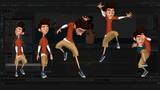








Katana is a powerful lighting and look-development application used across the globe by many studios, both large and small. Learning Katana independently or setting up a project from scratch can bring about many challenges. This 4-hour workshop by Senior Lighting & Look Dev TD Taeyoung Kim walks through all the basics of Katana and explains how to create a lighting template that can be used for your own shots.
This detailed workshop covers how to create simple yet useful tools inside Katana that will improve your workflow. Using the lighting template that is created through the workshop, Taeyoung then lights a simple shot and renders it out with AOVs using Arnold. He also shares his industry tips for setting up accurate lighting using an HDRi and a backplate. Using renders from one of the shots, Taeyoung then shares how to work with the AOVs and pull everything together in Nuke.
By completing this workshop, you will develop a sound understanding of how to work in Katana as well as how to render images that you can take into any compositing software.
The project files supplied with this workshop include all the .macro files and assets demonstrated throughout the training videos.
41 Lessons
This workshop by Tony Ianiro gives artists a practical foundation in Katana through real-world production workflows. Creating reusable templates and custom tools reflects industry standards for efficiency. By encouraging artists to build custom setups rather than using pre-made files, Tony ensures a deeper understanding of Katana's capabilities and optimization strategies.
Duration: 41s

This lesson breaks down the Katana interface for new users by explaining the default layout and demonstrating how to customize the workspace. Tony explains that understanding these fundamental navigation controls establishes a solid foundation for lighting and rendering workflows. The ability to save layouts ensures users maintain personalized workspaces across sessions.
Duration: 7m 55s

Mastering basic node operations is crucial for working efficiently in Katana. Tony encourages practice with these tasks, as they form the foundation for complex workflows. By building a simple rendered scene from scratch, beginners gain hands-on experience and understand how elements connect to produce a final render.
Duration: 13m 58s

This lesson introduces building a professional lighting template in Katana to streamline the rendering workflow. Tony provides a framework covering asset import to final render output, emphasizing efficiency. By creating this template, artists focus on creative lighting rather than technical infrastructure.
Duration: 4m 40s

Understanding the three grouping methods in Katana is essential for organizing complex networks. Tony shows that each serves a different purpose: Group for organization, Group Merge for same-type nodes, and Group Stack for sequential chains. This knowledge prepares users for building complex lighting templates.
Duration: 5m 2s

By creating a logical node structure, the template provides an efficient workflow for importing assets and managing render settings. Tony demonstrates how a modular approach allows for easy navigation and modification, setting the stage for building custom macros.
Duration: 10m 42s

Creating macros streamlines repetitive tasks and promotes consistency. By building reusable node groups, artists eliminate tedious setup work. Tony uses a macro for subdivision surface conversion as a practical example of leveraging the expression system to build production-ready tools.
Duration: 9m 53s

Combining switch nodes and user parameters lets users build intelligent tools that adapt based on selections. Tony focuses on how macros serve as starting points that can be expanded with additional parameters for complex rendering scenarios.
Duration: 13m 37s

The macro in this lesson provides an efficient way to manage screen windows across multiple cameras. Automating aspect ratio calculations eliminates the need for manual adjustments. Tony demonstrates best practices for creating user-friendly tools with dynamic parameter visibility.
Duration: 9m 36s

This lesson showcases a streamlined workflow for managing motion blur in Arnold by consolidating settings into one control. Tony demonstrates a three-option setup that gives artists flexibility to render blur or generate vector passes without manual adjustments. This custom tool improves efficiency and reduces errors.
Duration: 5m 32s

This lesson covers a basic lighting setup in Katana, emphasizing scene organization and flexible asset management. Tony demonstrates techniques for matching CG elements to photographic plates through HDRI manipulation. By following these best practices, artists build efficient lighting setups that adapt to pipeline requirements.
Duration: 24m 2s

Creating light AOVs gives compositors flexibility to adjust lighting without re-rendering. Tony shows how building a reusable macro with user parameters allows artists to quickly generate AOVs for any light source. This workflow is critical for meeting production deadlines and creative requirements.
Duration: 11m 28s

An efficient material workflow for character lighting is established by leveraging parent-child relationships. Tony demonstrates how this approach allows for global changes while maintaining flexibility for variations like car paint or chrome finishes.
Duration: 12m 27s

This lesson demonstrates essential techniques for realistic CG integration, with a focus on handling shadows and reflections. Tony shows how camera projection for environment materials and rendering separate passes allows for photorealistic results. Reflections must account for scene shadows to ensure contact points look believable.
Duration: 9m 26s

Creating multiple AOVs is essential for flexible compositing workflows. Tony explains the difference between built-in AOVs and custom light path expressions, allowing artists to tailor render outputs. The ability to tweak expressions provides greater control over the final process.
Duration: 9m 51s

In this lesson, the instructor presents an efficient workflow solution for managing render passes by creating a customizable AOV macro with selective activation. Tony implements a checkbox-controlled switch system, allowing artists to activate only the needed AOVs. This approach provides flexibility and efficiency for various production shots.
Duration: 7m 32s

Setting up proper render output paths is essential for keeping files organized. Tony shows how a systematic approach using expressions creates a flexible structure that organizes renders by project and AOV type. Understanding this process allows artists to establish professional workflows for personal projects.
Duration: 13m 42s

The OptScript macro provides an automated solution for AOV naming conventions. Tony shows how a reusable macro updates render pass names based on the connected node. This approach streamlines the workflow and reduces potential naming errors.
Duration: 12m 35s

Katana provides essential knowledge for production rendering, emphasizing the distinction between preview and final disk renders. Tony explains that a command-line batch rendering workflow is crucial for rendering frame sequences efficiently.
Duration: 7m 14s

Lighting and rendering full CG shots with multiple render passes is highlighted for maximum control. Tony demonstrates building lighting from an HDRI base to focused spotlights. This approach maintains proper interactions while allowing individual control over effects in post-production.
Duration: 27m 56s

In this final lesson, artists learn to combine render passes into a polished image. Tony demonstrates technical methods for depth control and lighting adjustments. Applying these techniques to personal projects is presented as the best way to build confidence with compositing tools.
Duration: 9m 14s

Primary tools
For this workshop you’ll need:
Project Files
When you download the workshop files, you'll get access to a comprehensive Katana lighting and rendering project. This will give you everything you need for professional lighting techniques and how they are broken down. Inside, you'll find:
- Katana project files (.katana) – Complete scene setups ready to open and explore in Katana
- 3D geometry and assets (.abc) - Character models (.abc files) and HDRI environments for realistic lighting
- Extensive render passes (.exr) - Over 20 beauty and shadow passes, including diffuse, specular, lighting, and utility renders to study professional compositing workflows
- Custom macros & tools (.macro) - Pre-built Katana macros to streamline your lighting and rendering process
Skills Covered
Who’s this Workshop for?
This workshop is intended for intermediate to advanced 3D artists, lighting TDs, and look development artists who want to master Katana's powerful lighting and rendering capabilities. It can be particularly valuable for professionals working in VFX studios or those transitioning from other lighting applications.
Junior artists and technical directors will also benefit significantly from this comprehensive training. The workshop provides industry-standard workflows and practical techniques that bridge the gap between lighting, rendering, and compositing, making it essential for anyone seeking to enhance their production pipeline skills.
Learning Outcomes
By finishing this workshop, artists will have developed comprehensive Katana skills and established efficient lighting workflows for professional production environments.
Key skills include:
- How to navigate Katana's interface and set up projects from scratch effectively.
- How to create reusable lighting templates that streamline shot production workflows.
- How to build custom tools and macros within Katana for improved efficiency.
- How to establish accurate lighting setups using HDRi environments and backplates.
- How to render multi-pass images with Arnold, including proper AOV setup.
- How to integrate Katana renders with Nuke for seamless compositing workflows.


